This page will show you how to edit files on the server.
We will assume here that you have already uploaded a simple version of your website. We will assume you have a project started with a folder and some files. If you don't have a project started, you will need to create a folder and some files on the server. I will add some notes about this, so read on.
For purposes of these instructions I'm going to have all my files on the server in a folder called "jim-pickrell-final".
There should be no spaces and no punctuation in the name of the folder.
If you don't already have a folder and some web pages created, we will need to create them.
This first thing to do to edit files on the server, is to log into the server. We use the "Putty" program to do this.
We have separate instructions on how to log in with Putty, which I will sumarize here.
If you are at home, download putty, and start it. If you are in the lab, you will find it on the z=Z drive. Go to computer -> Z drive -> CAOT 97 -> Putty. Double click to start it.
When the connect window comes up, enter "www.brandx.net" as the server you want to connect to.
When the black server window comes up, enter the username and password you have been given.
Here's what it looks like when you mis-spell the username or password
login: dumdumuser
   Password:
 Login incorrect
So you have to try again
login: lacc-student
   Password:
   Last login: Sun Dec  4 00:25:24 from adsl-75-22-67-158.dsl.irvnca.sbcglobal.net
 Welcome to the Brand X Server "WWW.BRANDX.NET"
Now you are connected to www.brandx.net.
Excellent.
If you had trouble with this, go back and read the instructions on Putty. Note that you must spell everything correctly, and if you make a mistake you usually have to start over. Our username for login is "lacc-student" so if you type "lacc_student" or "smc-stduent" or "LACC_student" then it will not let you log in and you will have to go back and start Putty again and start again. Just a warning, it all works well but you have to spell accurately.
If you are on a Mac, find terminal in the applications/utilities folder on your hard drive, run it, and type "telnet -l lacc-student www.brandx.net" and then give it your username and password. The rest of the instructions will be the same as for Windows.
You should be in the students area of the server's hard drive.
Your files should be in a folder with your name on it, which you created.
You can see what folders are available by typing "ls" which lists out the files and folders. I'm going to give this a try. First I will verify which folder I am in using the "pwd" command:
-bash-3.2$ pwd
   /var/www/html/brandx.net/lacc/caot97/students
Now I am going to list the folders and files using the "ls" command:
-bash-3.2$ ls
   2011spring               kjsbrown.html           marcosmedina
   alejandra_final_project  latosha                 maribel
   arit                     latosha.htmlindex.html  naderia
   arsen                    lhaynes                 nayeli_final
   attractions              lisa                    noindex.html
   Bhairavi                 lisafinalprject         raymond
   classroom.jpg            Lisa final project      richardson
   DEADJOE                  lisafinalproject0.html  sedefka-final-project
   deleteme                 lisafinalproject4.html  sedefka-final-project.
   jim                      lisafinalprojectcaot97  tamaralyn
   joe_lisa_final_project   lisafinalproject.html   tut
   joe_tut_final_project    lisafinalproject.html~  z
   karon                    man
 -bash-3.2$
If you have not created one, got back to the beginning of the project where it talks about FTP and do this, and then come back here.
Or, you can try this command: "mkdir".
I will do this right now. You don't need to repeat this step if you already have a folder. Please don't fill up the computer with duplicate folders, one should be enough for each student. But if you don't have one, please do make one.
Let's create a folder called "bobthrollop":
-bash-3.2$ mkdir bobthrollop
Let's do "ls" again to make sure that we created the folder:
 -bash-3.2$ ls
   2011spring               karon                   man
   alejandra_final_project  kjsbrown.html           marcosmedina
   arit                     latosha                 maribel
   arsen                    latosha.htmlindex.html  naderia
   attractions              lhaynes                 nayeli_final
   Bhairavi                 lisa                    noindex.html
   bobthrollop              lisafinalprject         raymond
   classroom.jpg            Lisa final project      richardson
   DEADJOE                  lisafinalproject0.html  sedefka-final-project
   deleteme                 lisafinalproject4.html  sedefka-final-project.
   jim                      lisafinalprojectcaot97  tamaralyn
   joe_lisa_final_project   lisafinalproject.html   tut
   joe_tut_final_project    lisafinalproject.html~  z
 -bash-3.2$
OK, I see the folder so it looks like it worked.
Now, how do we know if we are in the right area?
I'm going to repeat myself a little bit here, but this is really important.
When you connect to the server, it puts you in the home directory of the account you used to log in. You can find out the folder by typing "pwd", like this:
-bash-3.2$ pwd
   /var/www/html/brandx.net/lacc/caot97/students
 -bash-3.2$
So, that's where we are, in the students folder. The full path is /var/www/html/brandx.net/lacc/caot97/students, which means we are nested about six levels deep in folders within folders. Fine. Just good to know where we are.
We want to double check the name of our folder, because when we try to use it, we have to spell it correctly.
Let's list the contents of this folder. Here's the command to list the files: ls. When you do that you will see something like this:
-bash-3.2$ ls
   2011spring               kjsbrown.html           nayeli_final
   alejandra_final_project  latosha                 noindex.html
   arit                     latosha.htmlindex.html  raymond
   arsen                    lhaynes                 richardson
   Bhairavi                 lisa                    sedefka-final-project
   DEADJOE                  Lisa final project      sedefka-final-project.
   jim                      lisafinalproject.html   tamaralyn
   joe_lisa_final_project   man                     tut
   joe_tut_final_project    marcosmedina            z
   karon                    maribel
 -bash-3.2$
I
I see a variety of files and folders here. For example, I see Latosh's folder, and Raymond's folder. I see that Sedefka has two folders with almost the same name, that will probably cause her some confusion. I also see folders with bad names belonging to "Lisa" and "Tut". And I see my folder, which is called "jim".
Let's enter that folder. The command for this is "cd jim". It looks like this:
-bash-3.2$ cd jim
Nothing happened, but if I repeat the pwd command, I can see the current folder:
-bash-3.2$ pwd
 /var/www/html/brandx.net/lacc/caot97/students/jim
Let's list out the files here, and see what we have:
-bash-3.2$ ls
   bigserver.jpg       hpserver.jpg      jim-final     jim_pickrell_final
   computers.jpg       index.html        jim.html      nettop.jpg
   Eiffel.jpg          index.html~       jim.html~     penguin.jpg
   getting_there.html  jimcamelride.jpg  jim-map.html
 -bash-3.2$
Great. These are the files I uploaded earlier. If you don't see files, either you skipped the first couple of pages of instructions, or you are in the wrong folder. Do "pwd" again and make sure you are in the right place.
If cd isn't working, the usual problem is spelling. Are you sure you typed the name of the folder exactly the same as it was listed? See above and make sure you did all the steps corectly.
Before you go to the next step, you should make sure that you are in the right folder and see your files.
Before we start editing, let's see what we actually have here.
We can tell what the files are by looking at the last few letters of the name, the part after the period. This is called the "extension". Files with extension ",jpg" are jpeg images. Files with extension ".html" are web pages. The names with no extension are folders.
It's possible to use other systems to name your files, but this is the simplest and best way to do it.
Notice also that there is no puncutation, no capital letters, no funny characters like "$%#" in the names, and no spaces.
The first file of any website is called "index.html", so let's have a look at that one.
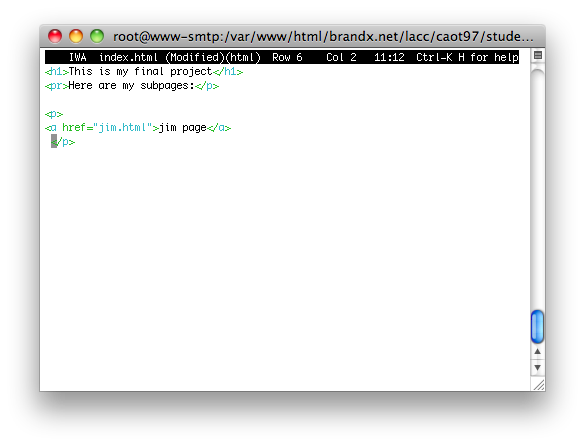
I type "joe index.html" to start this up.
There are some separate instructions on how to work the Joe program, so I'm not going to cover that in detail here.
Here's what we see when we start the "joe" program:
You should learn to recognize this program. Refer to the instructions on Joe for more information about how to operate this program.
A quick couple of notes to get you started:
All commands start with ^k
To save ^k and then "s". (Not ^k ^s, that will stop the session and you will have to log in again and start over.)
To quit ^k and then "q".
To list the commands get help with ^k and then "h"
Warning! Do not ever type ^s. This is the command to STOP. If you do that you will have to start over!
Remember: Never hit the control key and the s key at the same time. NEVER.
From here on out it's editing of files.
Read the sections about html for more information about how to do this.